The End of Folders: Deploying Native eSignature in Schools
Pedagogical council protocols. Trip consents. Equipment receipts. Leave requests. Each printed, signed, scanned, and filed in a binder that will likely never be opened again.
I have stress-tested the native eSignature functionality built into Google Workspace. My conclusion: a digital document workflow for schools is within reach. It is simpler than most administrators think. Let’s deconstruct the process step-by-step using a student trip consent as our primary use case.
Infrastructure Requirements
The eSignature feature is available in Google Workspace for Education Plus and Teaching and Learning Upgrade. If your school is on the free Education Fundamentals tier, this native functionality remains locked. This is one of the strongest arguments for an upgrade—the administrative time saved far outweighs the license cost.
Beyond the plan, no external integrations or third-party services are required. Everything happens within Google Docs and Gmail—tools your staff already understands.
Step 1: Initialize the eSignature Panel
Start with a standard Google Doc (template, protocol, or request).
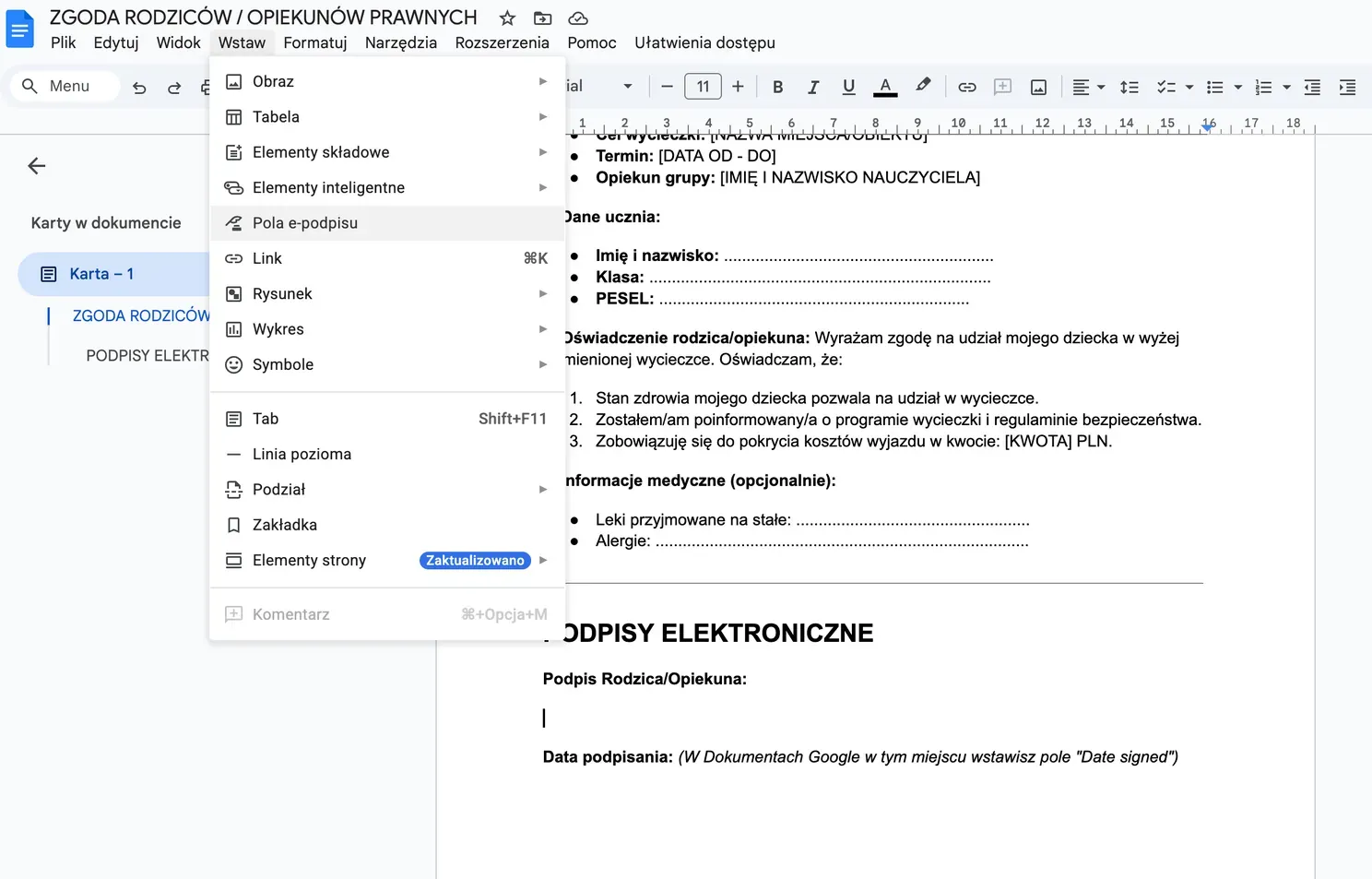
- Go to: Insert > eSignature fields.
- A control panel titled “eSignature” will open on the right.
Step 2: Mapping Functional Fields
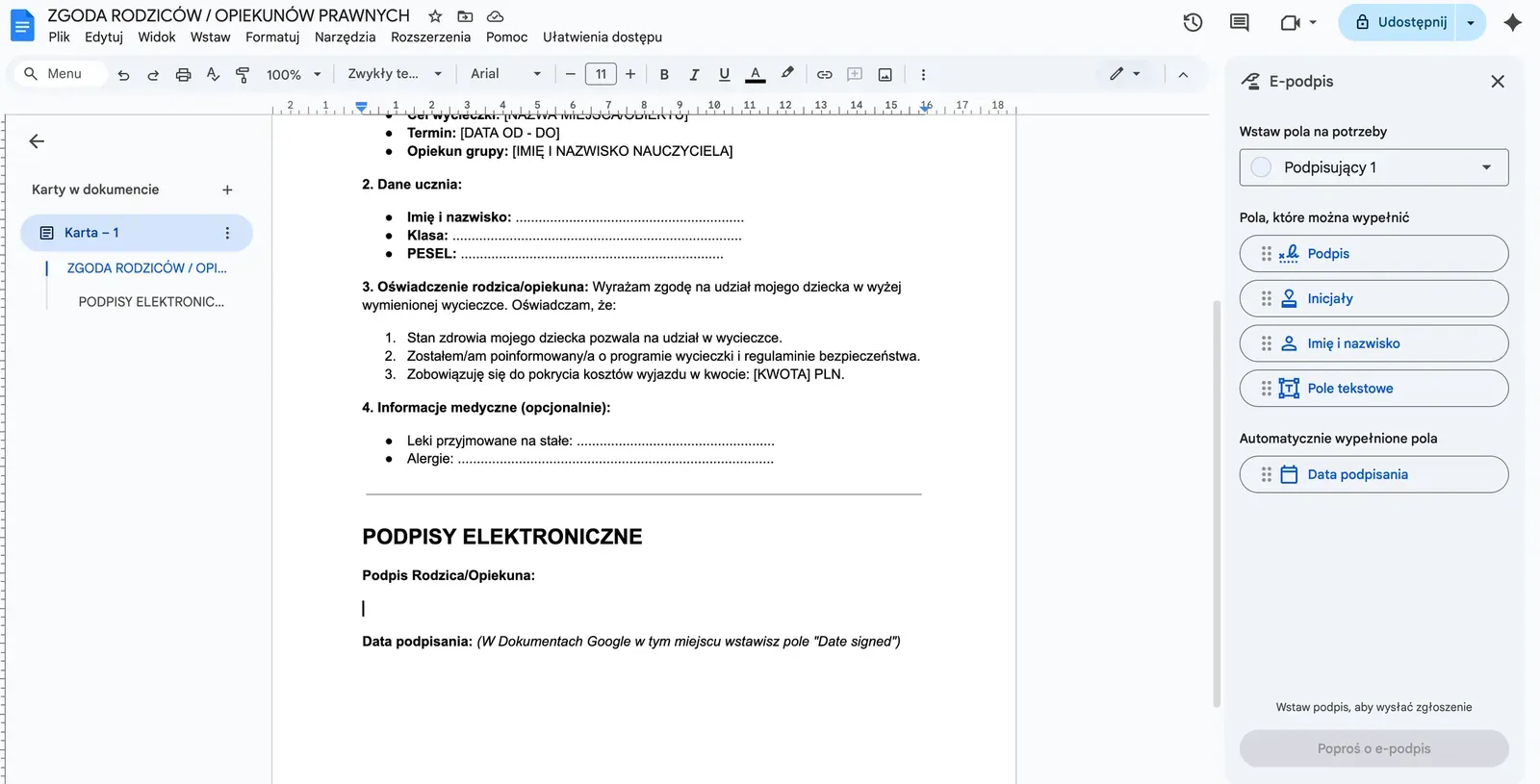
The side panel offers four interactive elements to be placed within your document:
- Signature – The primary interactive signing element.
- Initials – Used for multi-page document validation.
- Name – Automatically populated with the signer’s identity.
- Date Signed – A system-generated timestamp.
Technical Note: Signature and Initials fields serve different architectural purposes. For most educational consents, use the full Signature field for maximum legal clarity.
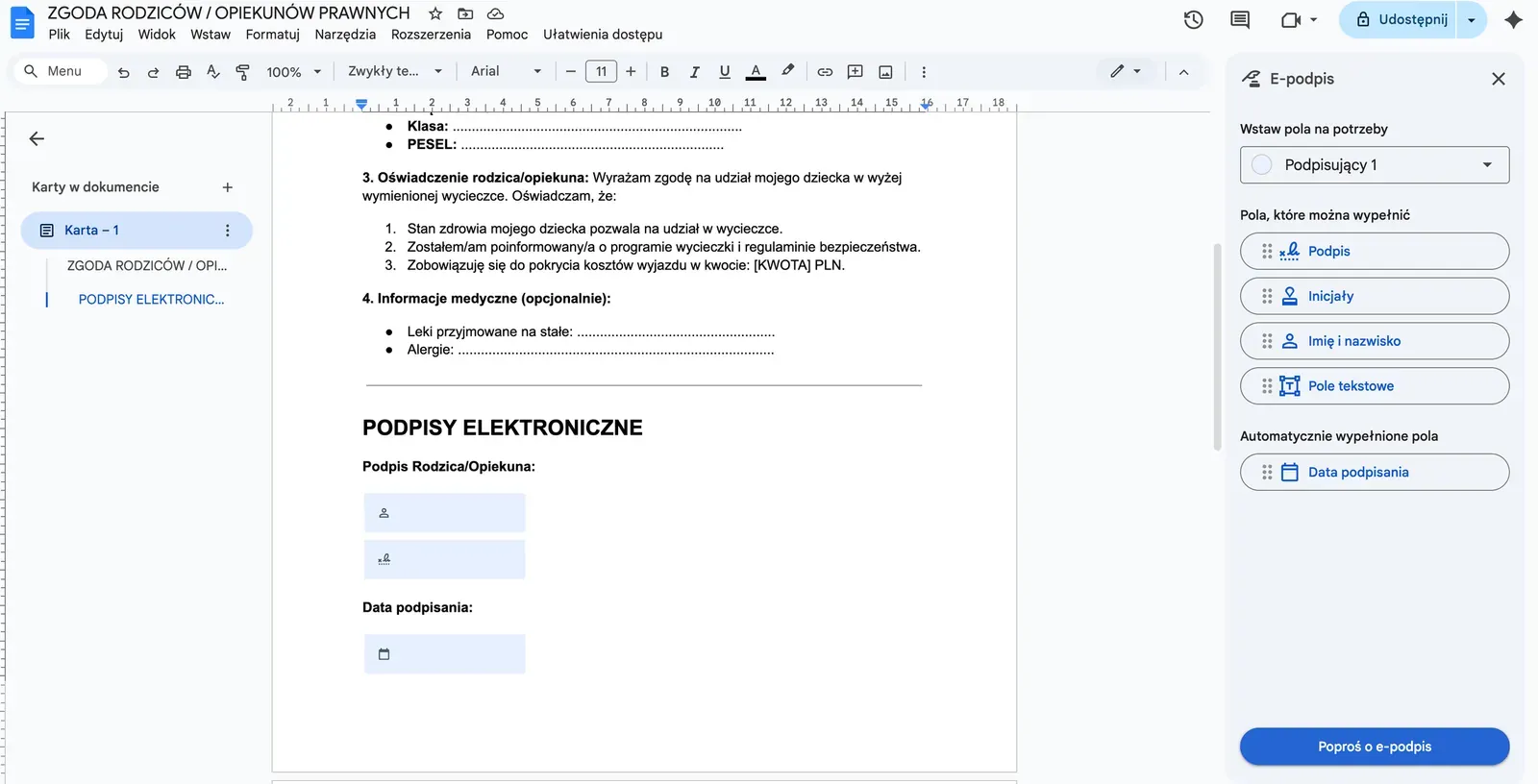
Step 3: Deployment & Request Logic
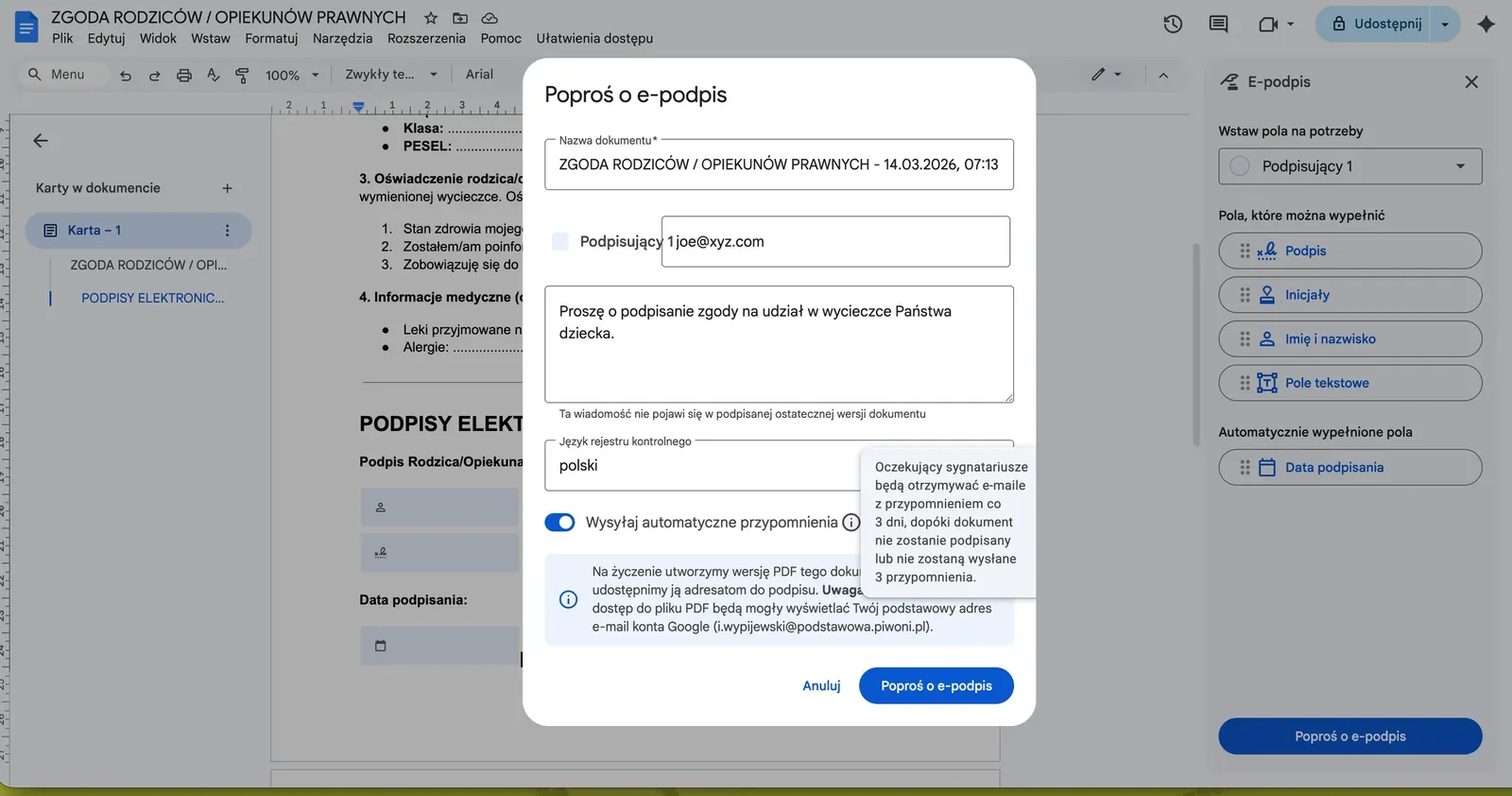
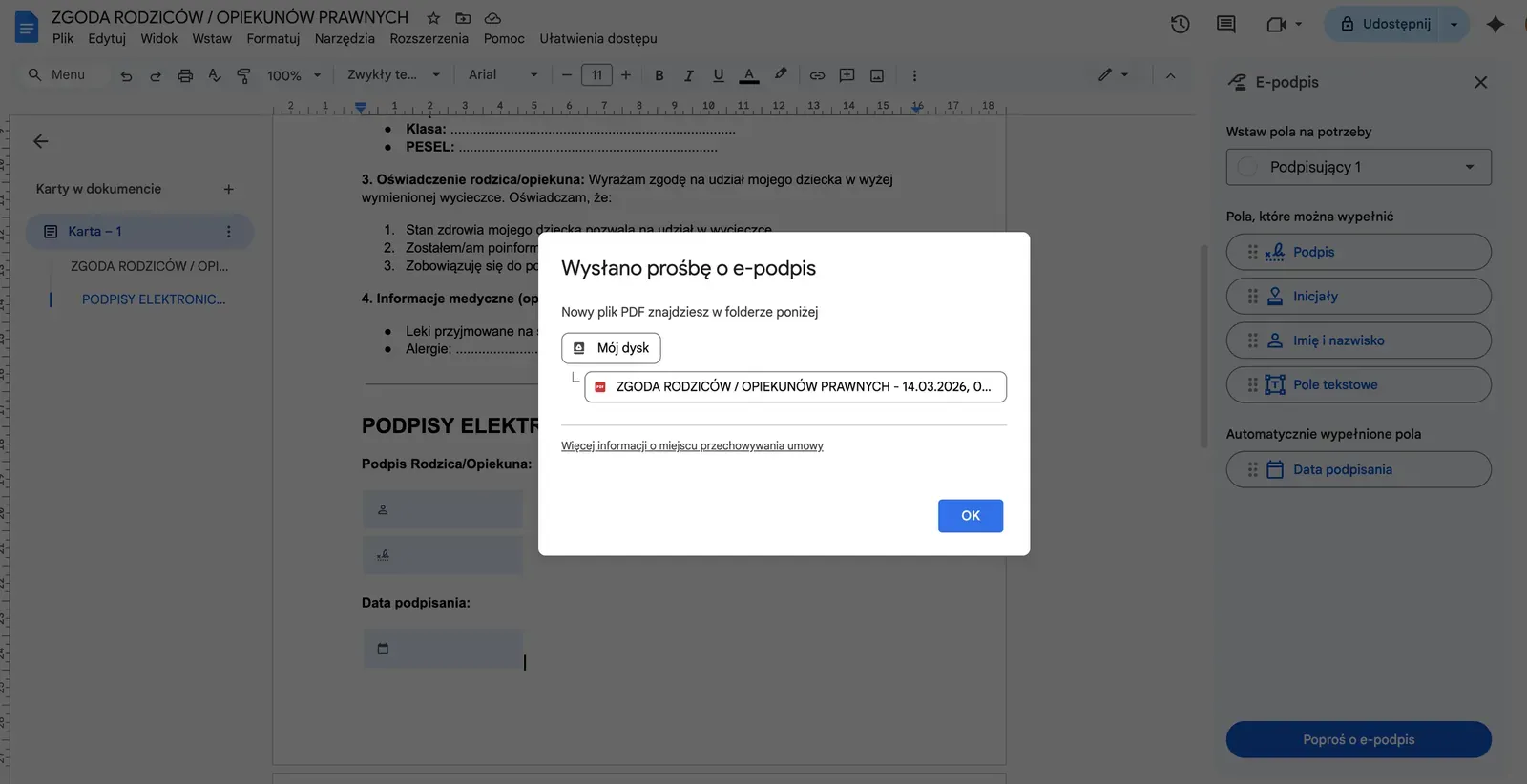
Once fields are mapped, click Request eSignature. In the dialogue box, define the following parameters:
- Signer Email: The parent, teacher, or staff member.
- Audit Trail Language: Set to your local language (e.g., Polish) or English. This generates a certificate containing IP addresses and timestamps.
- Auto-reminders: A critical feature—Google will automatically nudge signers every 3 days (up to 3 times).
Step 4: Signer Experience (UX)
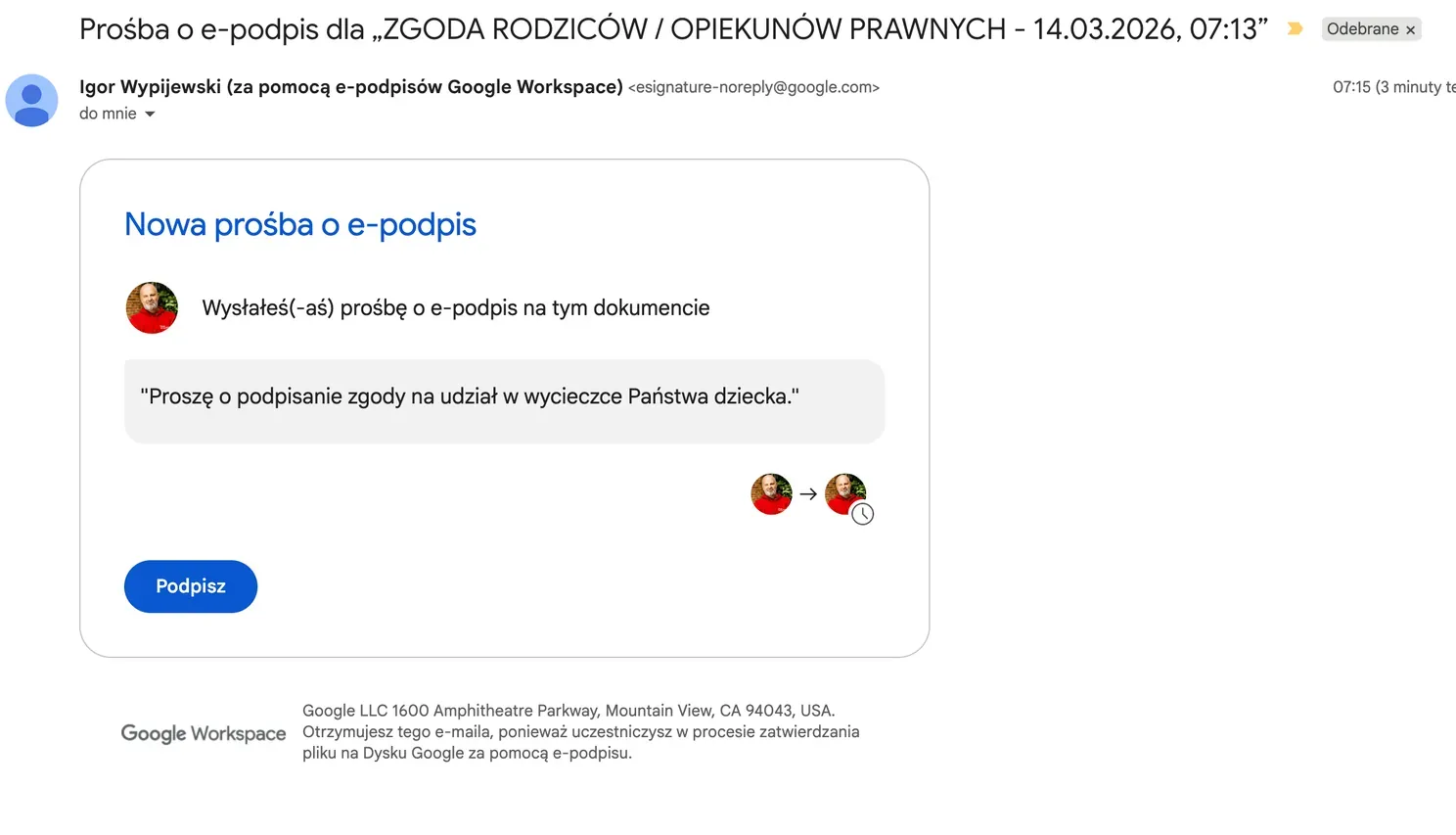
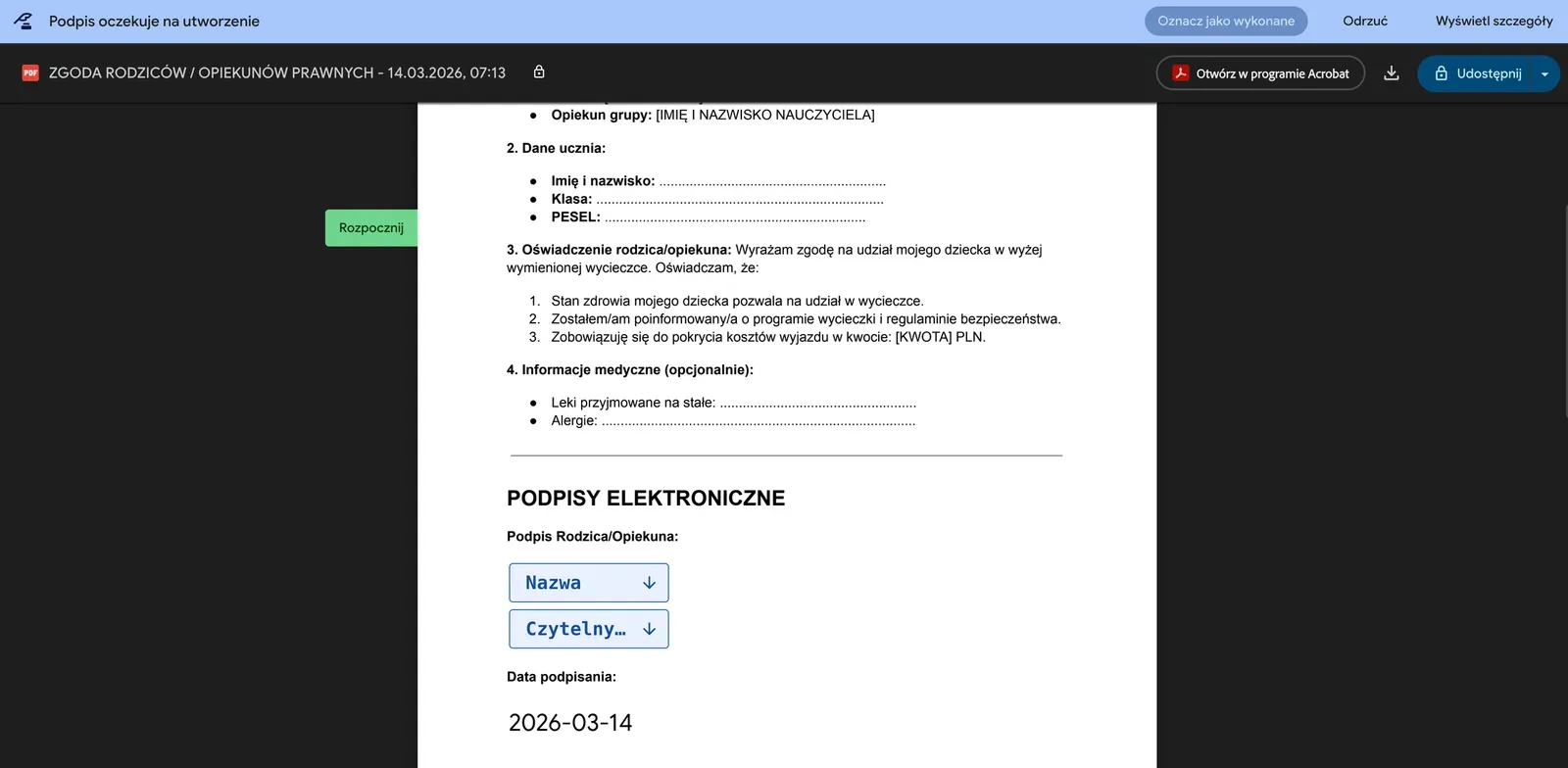
The recipient receives an email. They do not need a Google Account. They do not need to install software. They click “Sign,” and the system guides them:
- Typed Option: The system generates a script-font signature based on their name.
- Drawn Option: The signer draws their signature on a touch screen or with a mouse.
Legal Validation: Is it Compliant?
This is the most common objection in educational leadership. While specific requirements vary by jurisdiction (e.g., eIDAS in the EU), the core principle remains:
- Qualified Electronic Signature: Required only for specific high-stakes legal acts (notary deeds, specific employment contracts).
- Google eSignature: Classified as an electronic signature that is legally effective for 90% of school bureaucracy (consents, internal regulations, equipment receipts).
Each signed document includes an Audit Trail—a digital certificate documenting the entire process: who, when, and from which IP address. This is far more robust than a smudge of ink on a piece of paper.
ROI: Calculating the Value
A traditional consent process for a class of 30 students involves:
- Printing: 30 sheets of paper.
- Labor: Distribution, manual tracking, phone calls to parents, scanning, and physical archiving.
- Reality: Hours of administrative work spread over several days.
In a digital-native workflow: preparing and sending requests to 30 people takes less than 15 minutes. The rest (reminders, PDF archiving on Google Drive) happens automatically.
Architectural Takeaway
Digitization is not about the technology; it’s about the signal. When a school implements eSignature, it signals respect for the time of teachers, parents, and administrators.
Start with one document. Remove one binder. Experience the system.